Pros
- Free automated migration plugin included with every WordPress hosting plan
- Free professional (done-for-you) migration included with DreamPress
- Two migration options — self-service or fully managed — so you're not locked into one approach
- 20+ years of WordPress-specific hosting experience
- 24/7 support
Cons
- Free professional migration is limited to DreamPress; standard plans use the paid Professional Migration service instead
- Non-WordPress sites (Wix, Squarespace, Weebly, legacy ASP sites) may involve additional migration fees
- Professional migration turnaround is measured in business days, not minutes, if you need a fast switch
Everything You Need to Know Before You Migrate WordPress
Affiliate Disclosure: This article may contain affiliate links. If you sign up for hosting through one of these links, GuideMyHost may earn a commission at no additional cost to you. This doesn’t affect our editorial recommendations.
Switching WordPress hosts is one of those tasks people put off for months, because it sounds riskier than it actually is. You’ve built something — content, rankings, customer trust — and moving it feels like packing your whole house into a truck without knowing what survives the trip.
Here’s the reassuring part: WordPress migration is a well-understood, repeatable process. Done correctly, a free WordPress migration shouldn’t cause downtime, shouldn’t hurt your SEO, and shouldn’t put your data at risk. Done carelessly, any of those things can go wrong — regardless of which host you use.
This guide covers what to check before you migrate, what “free migration” actually includes, how to choose between doing it yourself and hiring a pro, and what to verify once the move is done. We’ll also look at how DreamHost’s free migration options work, since they’re a common reference point when comparing hosts.
What Is WordPress Migration?
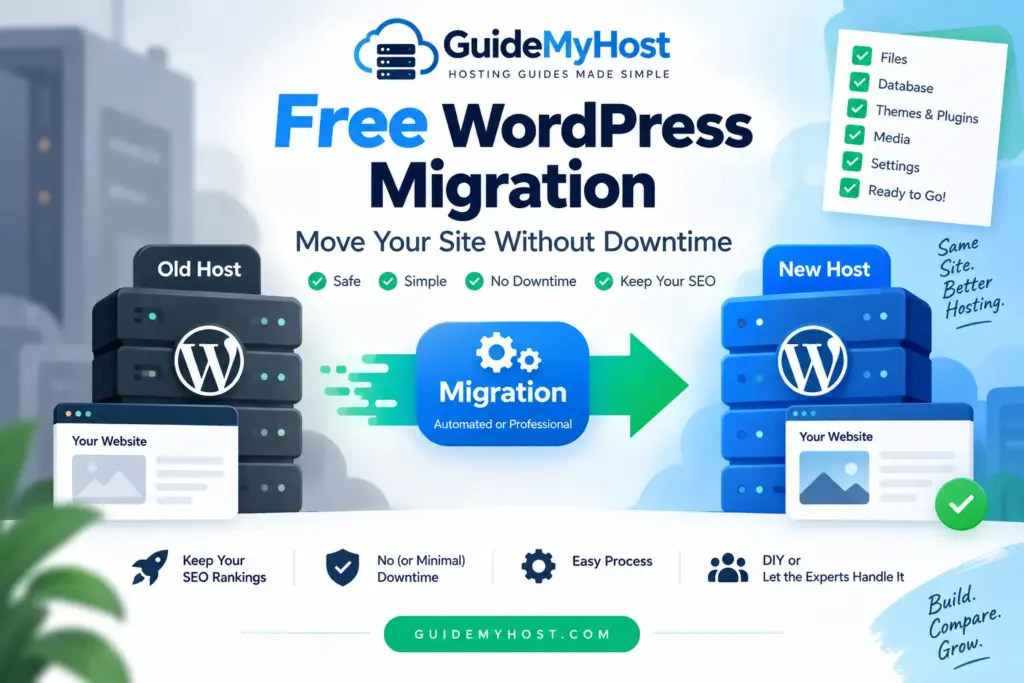
WordPress migration means moving a complete, functioning site, its files, database, theme, plugins, media library, and configuration, from one host to another while keeping it working exactly as it did before. That’s different from a simple backup: a migration has to preserve every functional link between the pieces (database table names, file paths, permalink structure), or things break.
People typically migrate because their current host is slow or unreliable, they’ve outgrown basic shared hosting, they want better WordPress-specific support, they’re consolidating multiple sites, or they’re moving off a proprietary builder like Wix or Squarespace onto self-hosted WordPress.
One important distinction: migrating hosts is not the same as changing your domain or URL structure. You can, and generally should, keep your domain and URLs exactly as they are — only the server changes. Keeping those constants is what makes a hosting migration low-risk for SEO, which we’ll return to later.
What Does “Free WordPress Migration” Actually Mean?
It’s an offer from a hosting provider to move your site to theirs at no extra charge. That’s a genuine cost saving — independent freelancers and agencies commonly charge anywhere from around $99 to several hundred dollars for a migration, depending on complexity.
Free migration offers generally come in two forms:
- Automated/self-service migration — a plugin you run yourself that copies your site to the new host
- Professional/done-for-you migration — the host’s own team migrates the site for you
These differ significantly in turnaround time & how well they handle complex sites, so it’s worth understanding both before choosing — covered in detail below.
Before You Migrate: A 10-Point Checklist
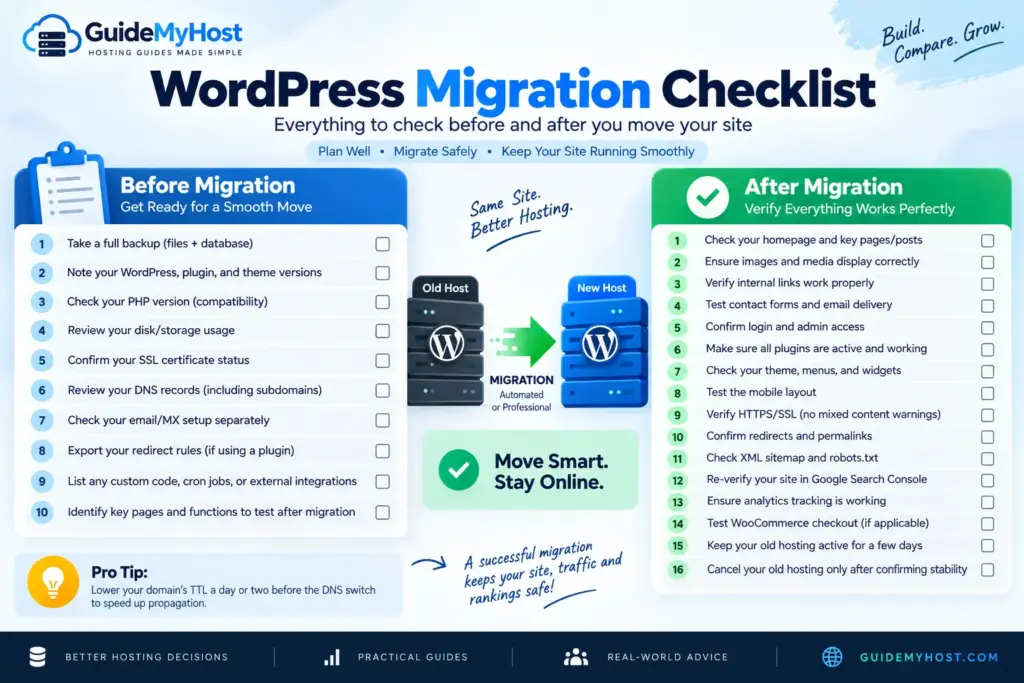
A little prep prevents most migration headaches:
- Take a full backup (files + database), independent of your host. Even if your host runs the migration, never rely on a single copy existing anywhere.
- Note your WordPress, plugin, and theme versions — useful for troubleshooting if anything needs reinstalling.
- Check your PHP version. Some plugins/themes require a minimum version; confirm your new host supports it.
- Check your disk/storage usage so your new plan has enough room, plus headroom to grow.
- Confirm your SSL certificate status. HTTPS needs re-establishing on the new server — most hosts automate this, but verify rather than assume.
- Review your current DNS records, especially if you use subdomains or a CDN that also relies on DNS.
- Check your email/MX setup separately. If email is bundled with your current host, migrating the site can affect delivery unless planned for; if it’s hosted elsewhere (like Google Workspace), it’s usually unaffected.
- Export your redirect rules, if you use a redirect plugin, so old URLs keep working.
- List any custom code, cron jobs, or external API integrations. These live outside the standard database/files and are what migration plugins most often miss.
- Identify critical pages and functions to test afterward:- contact forms, login, checkout, and any gated or membership content.
How to Choose a Web Hosting Plan (2026 Guide)
How Does a Free WordPress Migration Work?
Most automated migration tools follow a similar sequence, regardless of host:
- Sign up for hosting with the new provider and have your account ready.
- Install the migration plugin on your existing site.
- Connect it to your new hosting account (usually via an API key).
- Run the migration – it copies your database, media, theme, and plugin files.
- Preview the migrated site on a temporary URL before touching your domain.
- Update your domain’s DNS to point to the new host once confirmed.
- Keep the old hosting active for a short overlap while DNS propagates.
- Verify SSL, forms, and crawlability, then clean up.
A professional migration service simply does steps 2–5 for you.
Will My Site Go Down During Migration?
This is the most common worry but migration itself doesn’t have to cause visible downtime. Your existing site stays live while the new one is built and tested elsewhere. The part that actually matters is the DNS switch-over, when your domain starts pointing to the new server.
DNS changes propagate gradually, sometimes in minutes, sometimes up to 24–48 hours. Lowering your domain’s TTL (Time to Live) a day or two beforehand speeds up propagation once you flip the switch.
Reputable hosts give specific DNS guidance for this step, which is the difference between “migrate WordPress without downtime” being realistic versus a marketing promise. No host can guarantee zero downtime in every scenario — propagation involves systems outside any host’s control — but a well-planned migration keeps disruption minimal, often unnoticeable.
How Long Does a WordPress Migration Take?
| Migration Type | Typical Timeframe |
|---|---|
| Automated plugin (small–medium site) | Under an hour |
| Automated plugin (large/complex site) | Several hours |
| Professional/managed migration | 1–3 business days |
| DNS propagation after the switch | Minutes to 48 hours |
Build in extra time for DNS propagation if you’re working to a deadline — that part isn’t fully within any host’s control.
What to Check After WordPress Migration
Before canceling your old hosting, test the new site:
- Homepage and a sample of key pages/posts
- Images and media display correctly
- Internal links resolve properly
- Contact forms submit and arrive
- Login/admin access works
- Plugins are active and functioning
- Theme, menus, and widgets display correctly
- Mobile layout looks right
- HTTPS/SSL shows no mixed-content warnings
- Redirects still work
- Permalinks match the original structure
- XML sitemap is present and accessible
- robots.txt isn’t accidentally blocking crawlers
- Google Search Console still shows the verified property
- Analytics tracking is recording visits
- WooCommerce checkout and order history, if applicable
- Email/contact functionality still sends correctly
Only cancel your old hosting once you’re confident the new site is stable — ideally after a few days of normal traffic with no issues.
Stuck on a tricky migration issue? Our developers handle complex WordPress problems on a paid support basis — get in touch and we’ll sort it out for you.
Can You Migrate a Non-WordPress Site?
Yes, though differently than a WordPress-to-WordPress move. Static HTML sites or sites built on Wix, Squarespace, or Weebly generally require either manual migration (backing up files and uploading them directly) or a paid professional migration, since proprietary builders don’t allow standard file export the way WordPress does. Expect more manual rebuilding, and possibly additional fees.
Will Migration Affect Your SEO Rankings?
A hosting migration, done correctly, shouldn’t meaningfully affect your SEO rankings — search engines rank URLs and content, not servers. As long as your domain, URLs, permalinks, and internal links stay the same, and downtime is minimized, Google generally treats it as the same site served from a different location.
That said, it would be inaccurate to claim rankings can never fluctuate. Minor, temporary movement sometimes occurs as search engines re-crawl the site, and real ranking damage almost always traces back to a specific mistake rather than the migration itself broken internal links, an expired SSL certificate, extended downtime during the DNS switch, an accidentally changed permalink structure, incorrect canonical tags, or a sitemap that never got resubmitted.
SEO Migration Checklist: verify URLs match, confirm HTTPS sitewide, check redirects and internal links, confirm the XML sitemap is submitted in Search Console, check robots.txt isn’t blocking crawlers, confirm canonical URLs are correct, spot-check that key pages aren’t accidentally set to “noindex,” and monitor Search Console for crawl errors plus rankings/traffic for a few weeks afterward.
Automated vs. Professional Migration: Which Should You Choose?
Neither option is universally better it depends on complexity and comfort level.
| Situation | Recommended Option |
|---|---|
| Small or simple WordPress site | Automated migration |
| Beginner who wants guidance | Professional migration |
| Large site with a big media library | Professional migration |
| WooCommerce store | Professional migration may be preferable |
| Custom-coded WordPress site | Professional migration may be preferable |
| Complex redirect rules | Professional migration |
| You want full control of the process | Automated migration |
| Not comfortable changing DNS | Professional migration |
Automated migration gives you speed and independence — most straightforward sites move in under an hour. Professional migration trades that immediacy for peace of mind: someone experienced handles the parts most likely to go wrong on a complex site, at the cost of a longer, business-day turnaround.
When Professional Migration Makes Sense
Worth considering if your site is: large or media-heavy, a WooCommerce store, high-traffic, running custom code or external API integrations, built on a complex or long-accumulated database, using complicated redirect rules, a membership/gated-content site, receiving orders or leads continuously, or if you’d simply rather not touch DNS yourself.
If none of that applies, an automated migration plugin is usually sufficient.
DreamHost’s Free WordPress Migration: How It Works
DreamHost, a long-established WordPress-focused host, includes free migration with its WordPress hosting plans, through two paths.
Automated Migration (Migrate Myself): DreamHost provides a free plugin you install on your existing site, then connect to your new DreamHost account. According to DreamHost, most migrations this way complete in under an hour, though larger or more complex sites can take longer. This suits owners comfortable following plugin-based instructions who want to control the timeline.
Professional Site Migration (Migrate For Me): DreamHost’s in-house team can handle the entire process. This is included free with DreamPress, DreamHost’s managed WordPress tier, with a stated turnaround of about one business day; the standard Professional Site Migration outside DreamPress is listed at about three business days. DreamPress customers activate it from the migration dashboard in their account panel and aren’t locked out of the automated plugin either — either option remains available.
Non-WordPress sites can be migrated manually or through DreamHost’s Pro Services team; sites on proprietary builders (Wix, Weebly, Squarespace) or legacy ASP-based sites may involve additional fees due to the extra manual work required.
A note on accuracy: hosting plans, pricing, and specific features change over time. Confirm current plan details and pricing on DreamHost’s official site before purchasing, rather than relying solely on this article.
Which Migration Method Should You Choose?
Choose automated migration if your site is relatively simple, you’re comfortable following instructions, and you want the move done on your own schedule.
Choose professional migration if your site is large, complex, or business-critical, you run WooCommerce or handle continuous orders/leads, you have custom code or complicated redirects, or you’d rather not touch DNS yourself.
Step-by-Step: How to Migrate Your WordPress Site to DreamHost
- Choose a hosting plan sized for your traffic and storage needs.
- Sign up and get your account credentials.
- Decide your migration method — automated plugin or professional migration.
- Self-migrating: install the migration plugin, connect it to your account, run the transfer.
- Professional migration: open the migration dashboard in your account panel and request it.
- Preview your site on the new server before any DNS changes.
- Work through the post-migration checklist above.
- Update your DNS to point to DreamHost once verified.
- Monitor for 24–48 hours while DNS propagates, keeping your old host active.
- Cancel your old hosting once the new site is confirmed stable.
Frequently Asked Questions
How much does WordPress migration cost? Free through a host’s migration offer; independent freelancers or agencies typically charge roughly $99 to several hundred dollars depending on complexity.
Can I migrate WordPress without downtime? Usually, yes — if the old site stays live while the new one is built and DNS is handled carefully. No host can promise zero downtime in every scenario, since propagation partly depends on systems outside their control.
How long does WordPress migration take? Under an hour for most automated migrations of small-to-medium sites; professional migrations are typically measured in business days.
Will migration affect my SEO? Not if your domain, URLs, permalinks, and internal links stay the same and downtime is minimized. Most post-migration SEO problems trace back to a specific mistake, not the migration itself.
Should I cancel my old hosting immediately? No — keep it active until you’ve fully tested the new site and confirmed it’s stable, typically a few days to a week.
Can I migrate a WooCommerce store? Yes, though the added complexity of orders, inventory, and payment integrations often makes professional migration worth considering for stores with significant volume.
Can I migrate a non-WordPress website? Yes, manually or through a professional migration service, though sites on proprietary builders like Wix or Squarespace may involve extra fees.
Do I need to change my domain when I migrate hosts? No — a hosting migration only changes where your site is stored; your domain and URLs should stay the same.
What happens to my email when I change hosting? Usually unaffected if hosted separately (e.g., Google Workspace); if bundled with your current host, plan for it separately so it isn’t disrupted.
What should I do if something breaks after migration? Check the post-migration checklist first — most issues trace to a plugin conflict, a missing redirect, or DNS still propagating. If it persists, contact your new host’s support.
Is DreamHost’s migration really free? The automated plugin is free with a WordPress hosting plan purchase, and professional migration is included free with DreamPress. Confirm current terms on DreamHost’s site before purchasing.
Can I migrate to DreamHost myself? Yes, using DreamHost’s free automated migration plugin.
Can DreamHost migrate my site for me? Yes, through its professional migration service — included free with DreamPress, or available as a paid add-on on standard plans.
Why Consider DreamHost for WordPress Migration?
A few things worth weighing if you’re comparing WordPress hosts: two clear migration paths (self-service or fully managed) so you’re not forced into one approach; a long track record specifically in WordPress hosting rather than as a generalist host; a DreamPress tier aimed at sites wanting more managed performance features; and support available around the clock. As always, verify current plan details, pricing, and included features directly on DreamHost’s site before signing up, since offers and plan structures are updated periodically.
👉 See Free DreamHost’s current WordPress migration options
Note: If you sign up through the link above, DreamHost handles the migration itself for free — but if you get stuck anywhere along the way or just want someone to double-check the setup, I’m happy to help at no cost. Get in touch!
Final Thoughts
A WordPress migration sounds bigger than it usually is. The process is well-documented, the tools are mature, and the risks are almost entirely preventable with basic preparation: back up independently, test before you switch DNS, keep your old host active until you’re confident, and work through a simple SEO checklist afterward. Whether you handle it yourself or hand it to a professional team, those fundamentals are what actually determine whether your move is a non-event, which is exactly what a good migration should be.

[…] Free WordPress Migration: How to Move Your Site Without Downtime […]